
Events & webinars
Webinars and live broadcasts
Create a webinar, share a short sign-up link, rehearse and run the broadcast. Your audience needs no account, and you can reach hundreds.
A webinar on Idun is broadcast from your browser, on your own domain. Viewers need no account. They sign up with a name and an email, get a personal link by email and join with one click.
If you don’t see Events in the menu, turn on Events & webinars under Settings → Features.
Create the webinar
Open Events in the menu and choose New event.
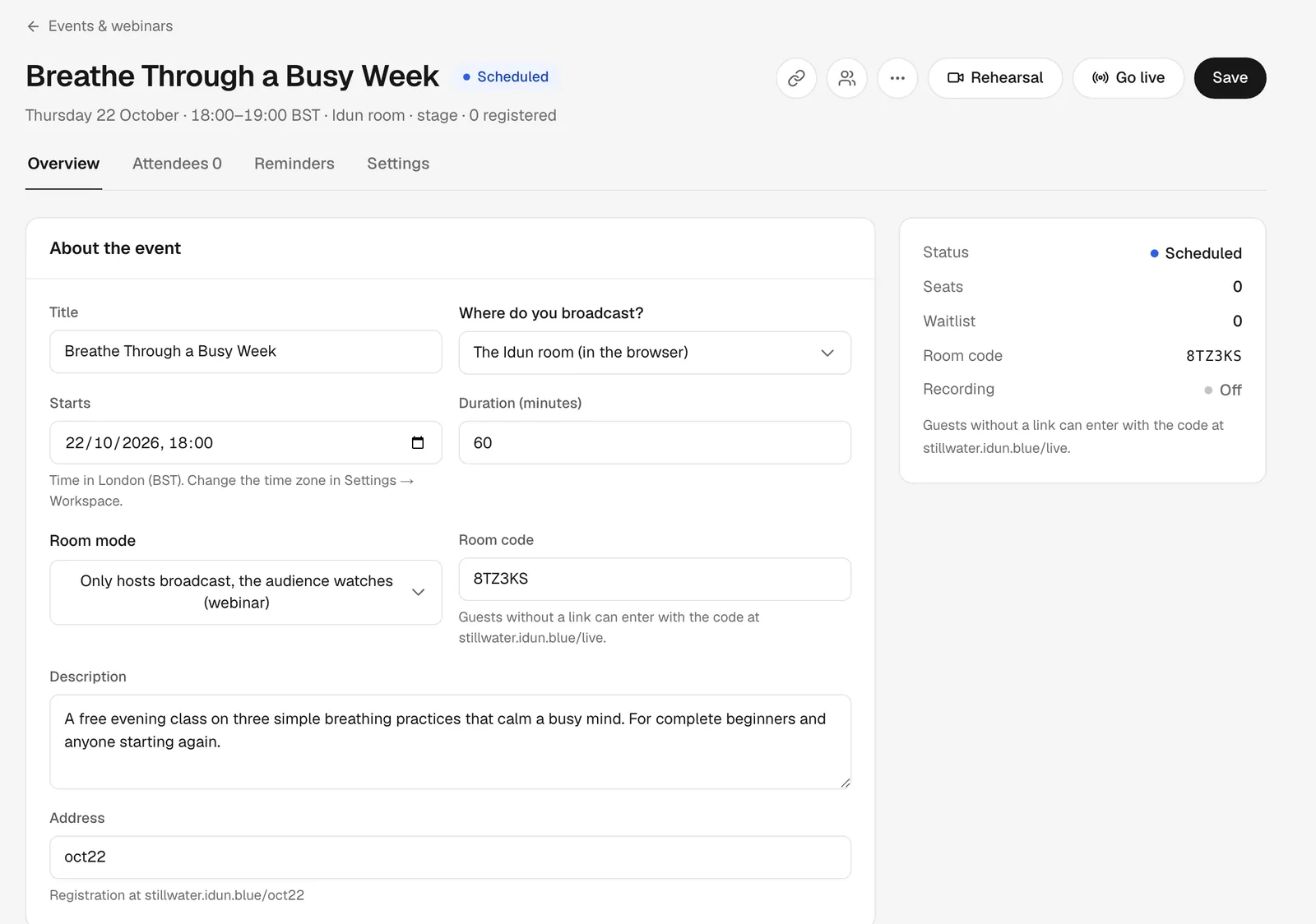
| Field | What to choose |
|---|---|
| Title and Description | What the sign-up page shows. |
| Where do you broadcast? | The Idun room (in the browser). A Zoom link sends everyone there instead. |
| Starts and Duration | The time shows in your time zone, and visitors elsewhere also see their own time. |
| Room mode | Only hosts broadcast, the audience watches (webinar). This is the choice that matters most. |
| Address | The end of the link, for example oct22. Left empty, it is made from the title. |
Under Settings you set a seat limit and recording. Record the event gives you a replay, and Show the replay on the event page decides whether registrants see it.
Save. The webinar now exists, and sign-up is open.
Share the link
The link icon next to the title copies the registration link, for example yourdomain.com/oct22. It leads to a sign-up page with the title, time and description:
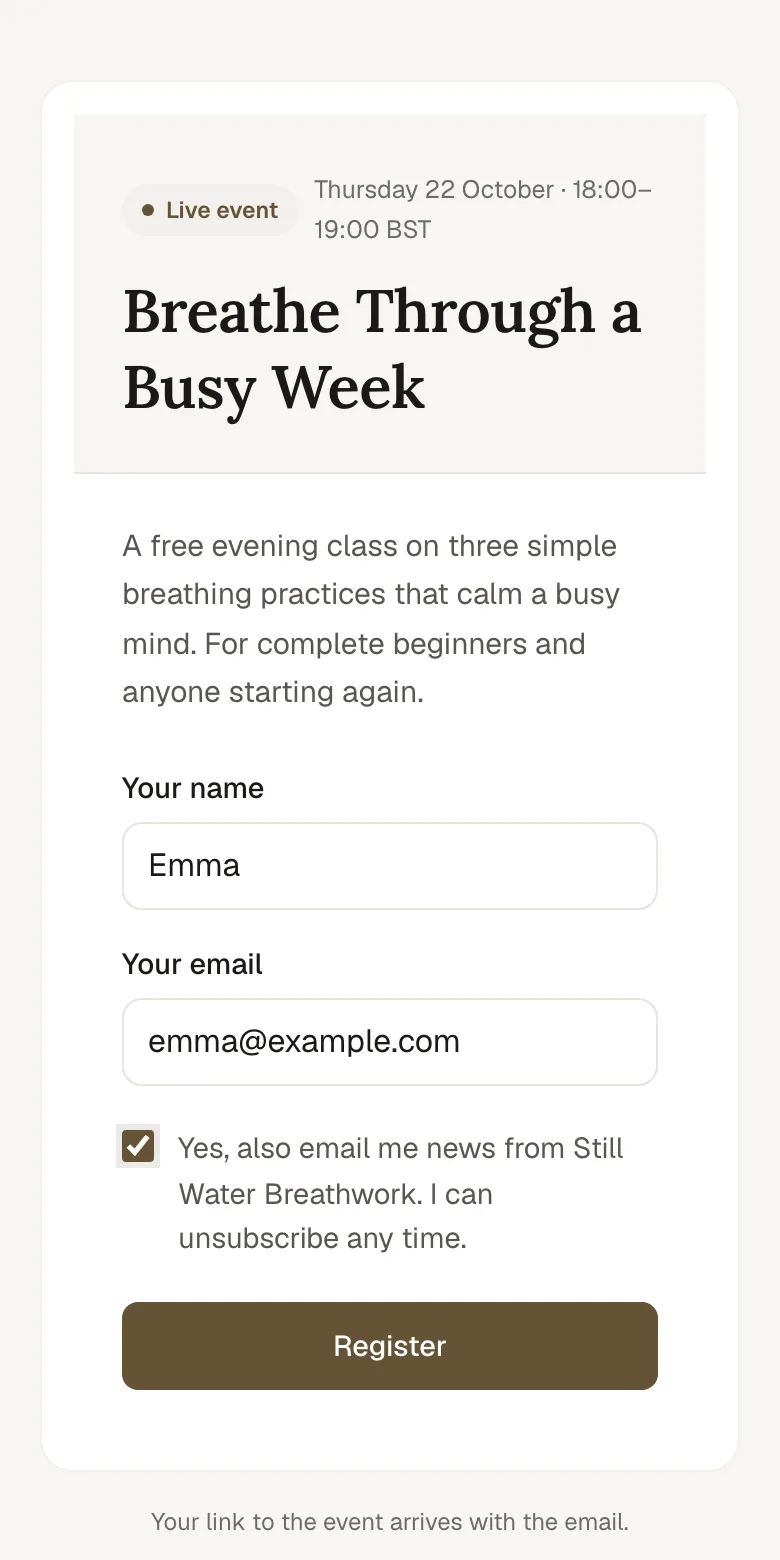
- Everyone who signs up gets a confirmation email with a personal link to the room and a calendar file. Reminders go out 24 hours and 1 hour before, and one more email when you go live. You can see them under Reminders.
- Yes, also email me news is optional and unticked. Only people who tick it subscribe to your newsletter. Everyone gets the event’s own emails, and everyone appears under People.
- For your own designed landing page, build it in Website and give it the same address. It then takes over the link. Point the page’s button to the sign-up.
Share the registration link, not the room code. A registrant has their own link, gets reminders and the replay, and can be kept out if they disrupt. A room code is an open door, better suited to small live sessions inside a course.
Test first
Do two things before the real one.
1. A rehearsal, on your own. Rehearsal opens the room for you alone. Check your camera, sound, light and screen sharing. The event doesn’t change and nobody gets an email.
2. A dress rehearsal with people. Create a separate event called something like “Dress rehearsal”, in webinar mode. Go live and send the Guest link (the people icon) to five to ten friends. Ask them to join in different ways: a computer, an iPhone, an Android phone, and ideally someone on a work network. Try the chat, a question, a raised hand, bringing someone on stage and reloading your own page. End it when you’re done.
Do the dress rehearsal on its own event, never on the real one. Once you end an event it is over: the sign-up link closes and the room code stops working.
Go live
Open the event in Studio about 15 minutes before the start and press Go live. Everyone who signed up gets the “We’re live” email. You enter the room through the green room, where you see yourself and choose your camera and microphone.
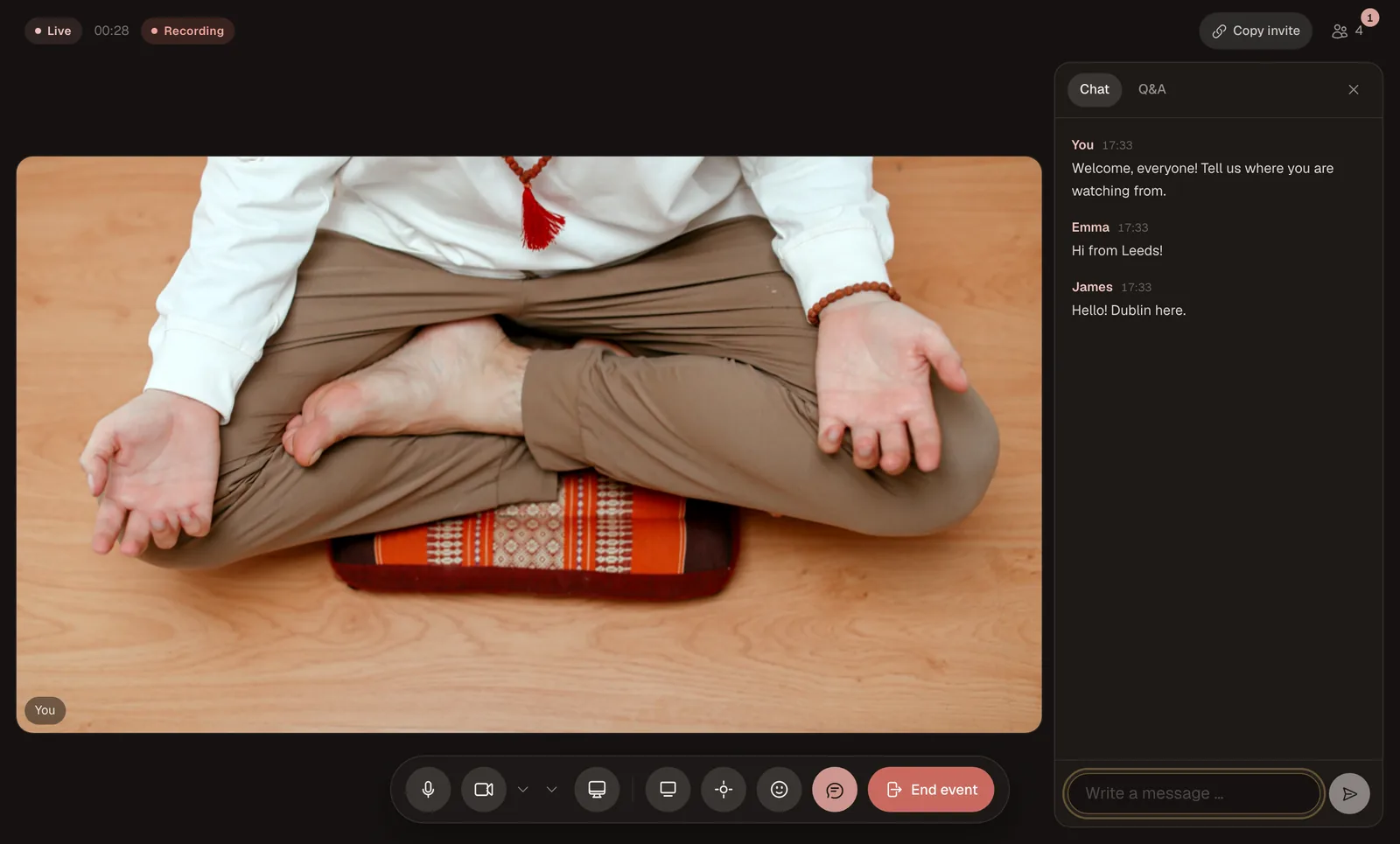
| What you want to do | How |
|---|---|
| Read and answer the chat | The chat icon. |
| Take questions | The Q&A tab in the chat. The audience votes questions up, and the most-voted come first. Mark a question as answered once you’ve talked about it. |
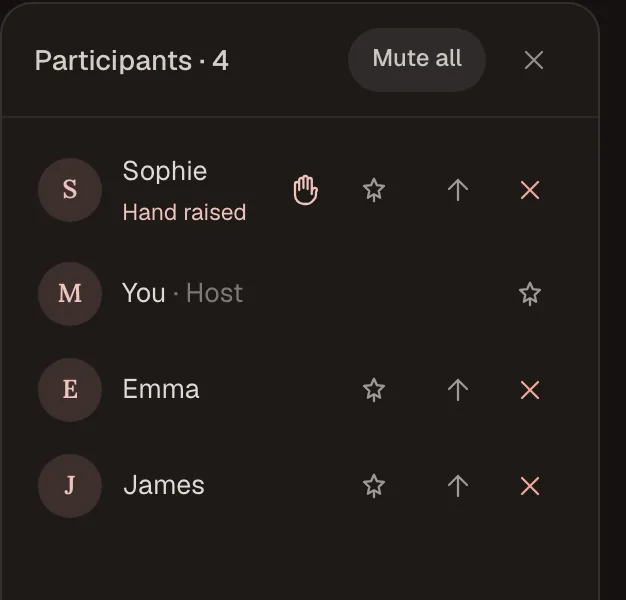
| See raised hands | A number appears on the participants icon at the top right. |
| Bring someone on stage | Open Participants and press the up arrow (Bring on stage) next to the person. They turn on their own camera and microphone. Take them off again when you’re done talking. |
| Remove someone | The cross (Remove from the room) next to the person under Participants. A registrant can’t come back during that event. |
| Show slides | Screen sharing in the toolbar. |
| Show an offer | Show the offer to everyone. Everyone sees a card with a button to checkout. The button is there when the event is linked to an offer. |
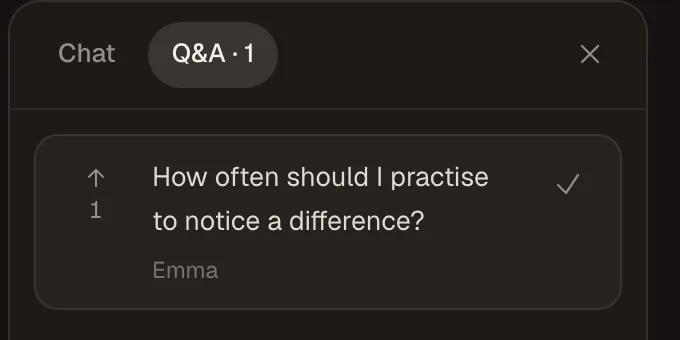
What your audience sees
The audience sees you and whoever you bring on stage. They can chat, ask questions, raise a hand and react. Nobody in the audience is seen or heard.
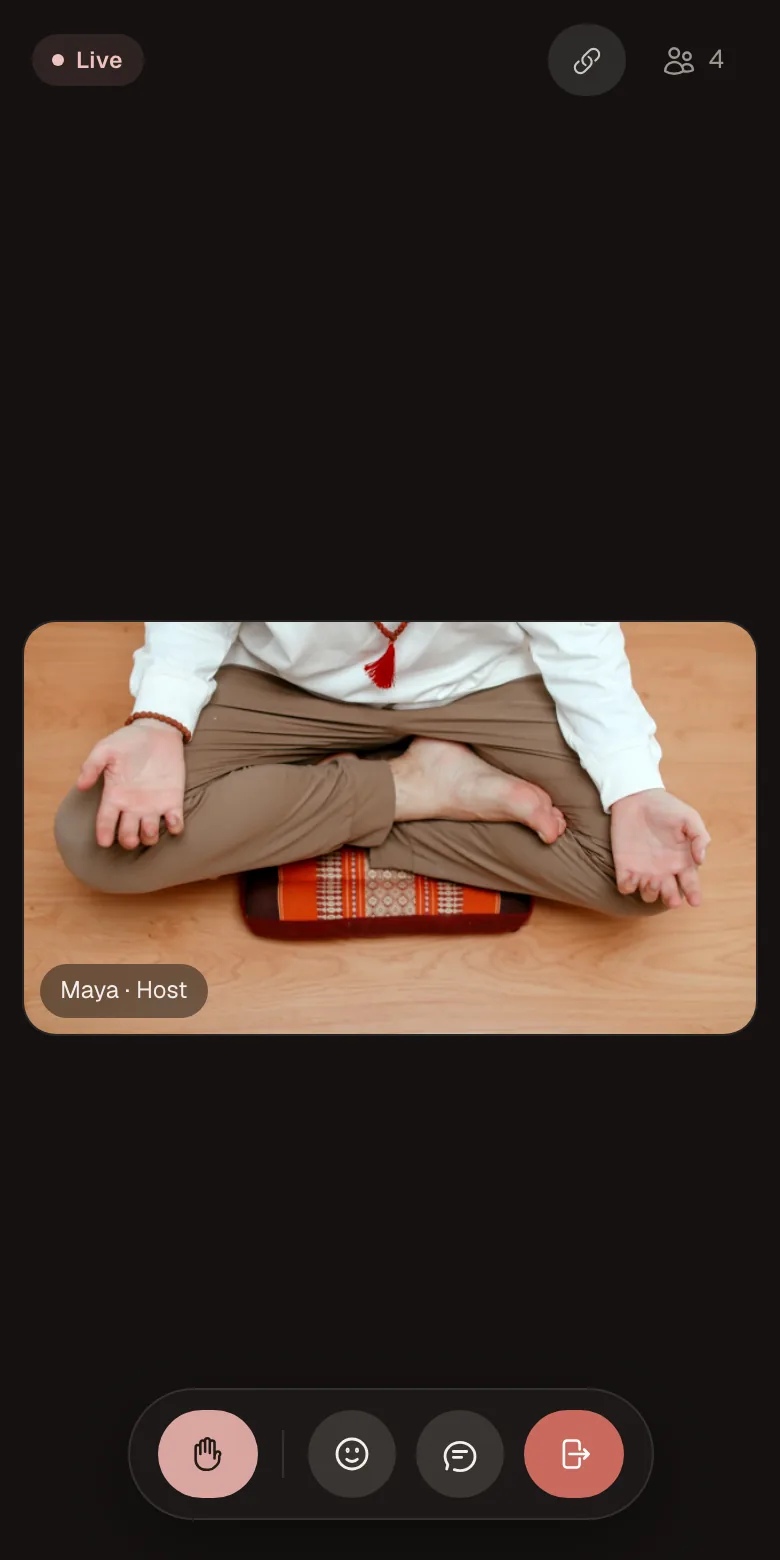
- Hundreds of viewers are fine. The first ones see you instantly. If more join, they watch through a broadcast a few seconds behind, and can still chat and ask questions.
- If someone loses their connection, they come back on their own.
- An iPhone sometimes starts without sound. A Tap for sound button then appears at the top.
- If someone’s picture stutters, they are offered to watch the broadcast instead.
If something goes wrong
| This happens | Do this |
|---|---|
| Your picture freezes | Wait five seconds. If it doesn’t recover, reload the page. The room carries on for everyone else, and you’re back within seconds. |
| Your sound disappears | Check that the right microphone is selected, using the arrow next to the microphone button. |
| A viewer hears nothing | They tap Tap for sound at the top of the room. |
| Someone disrupts the chat | The cross (Remove from the room) next to the person under Participants. |
| Everything feels wrong and you want to switch | Change Where do you broadcast? to a Zoom link you prepared, and save. Everyone in the room is moved there automatically. |
End and replay
Press End event and confirm End for everyone?. Everyone sees that the broadcast is over.
If recording was on, the replay shows up under Recordings within a few minutes, with automatic subtitles. Make a lesson adds it to a course.
Automations has two triggers for the follow-up: Attended a live event and Missed a live event. With them you can send a thank-you to those who came and the replay to those who missed it.
Tips
- Use a cable if you can, otherwise sit near the router. Wear headphones so there’s no echo.
- Restart your computer the day before, and close other video calls and large downloads.
- If someone helps you, they can join from Studio and become a second host. That helps with big webinars but isn’t required. You can do everything yourself.